Close Browser Tabs Without Losing What You Need
Save the pages for one task where you can find them again, then close the tabs you no longer need. Start with one project, not your entire browser.
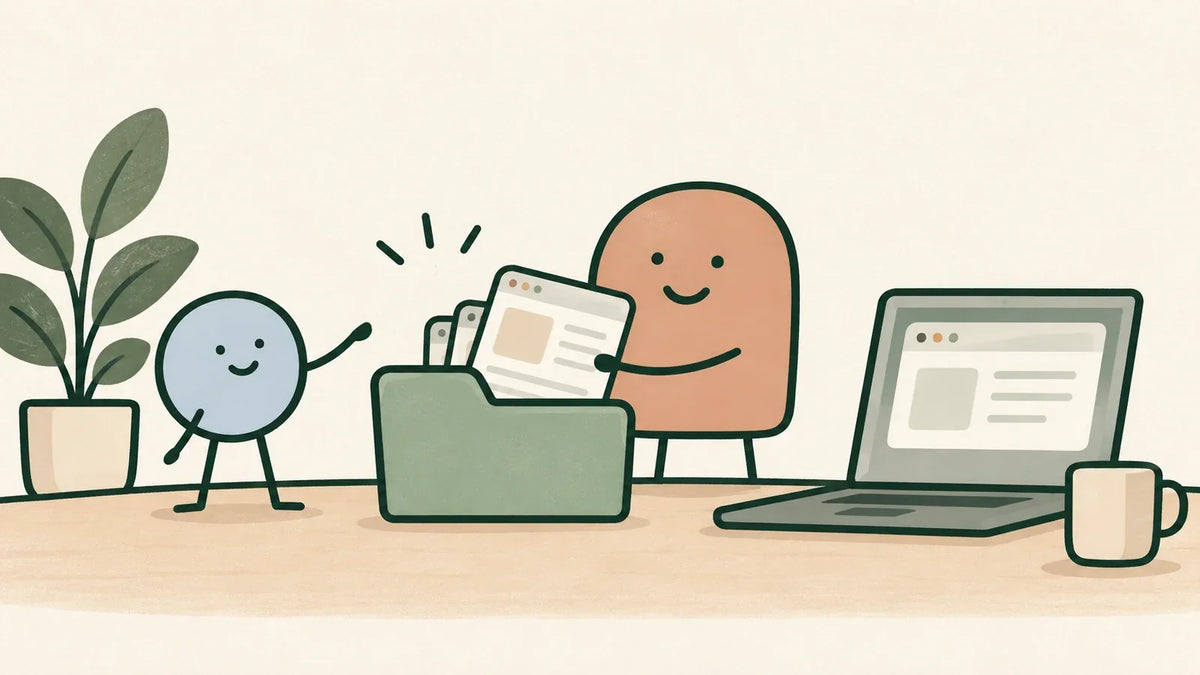
To close browser tabs without losing useful pages, give the pages for one task a recognizable home, add a short note about why you saved them, and test that you can find them again before closing the tabs. Keep the pages you are actively using open. You do not need to reach an arbitrary tab count.
Perhaps you have a proposal open alongside research, last week's meeting notes, a form you have not submitted, and several things you meant to read. Closing everything could remove useful work. Leaving everything open makes those different jobs harder to distinguish. Start by separating the active task from the material you want to keep.
Ask what each tab is holding for you
Choose the tabs for one project rather than sorting the whole browser. For each, ask whether it is working material, a reference, a reminder, or something you are finished with. These roles need different homes.
- Working material: leave it available while you use it, especially if it contains unsaved work.
- Reference: save a reliable way to reopen it beside the project.
- Reminder: write the action it represents in the task system you already use.
- Finished material: close it when you have checked that nothing needs saving.
A tab labeled with a company name may actually mean “compare these two delivery options.” Saving the page preserves the reference. Recording the comparison preserves the task. Neither automatically does the other's job.
Make one place easy to recognize
Use a permitted tool you already understand: a bookmark folder, a project note containing saved page addresses, or a browser feature you have tested. Name the location after the task, such as “Office order , delivery comparison,” rather than “Stuff to read.” Add only the context you would otherwise have to reconstruct.
Follow workplace rules for confidential material. Do not move customer information into a personal account just to tidy the browser. A shared file also needs to stay accessible to the people who require it. Organization should preserve the right access.
If your browser offers saved tab groups, check how they behave on your device. A visible group is not necessarily a backup. Avoid relying on a feature you have not tried, particularly for important work.
Check retrieval before you close
Open your saved location and choose one page to retrieve. Does it lead to the right document? Is the useful passage still identifiable? A bookmark may return to the page without preserving a draft, a temporary form state, or the place you stopped reading.
Save drafts using the application's proper controls. For an unfinished form, check its save-and-return options before closing anything. If there is no reliable way to preserve the work, keep that tab open until you can finish or arrange another suitable solution.
Once the saved reference works, close the duplicate or inactive tab. This small check makes the decision about a particular page, rather than a promise that you will remember where everything went.
A fictional example: three references and an unfinished form
This scenario is invented to illustrate the choices. Leah is arranging a routine office supply order. Her browser holds three supplier pages, the shared comparison sheet, and an order form with unsubmitted information.
She puts the three references in the approved project note and adds “Compare delivery dates for the Tuesday arrival.” She opens one saved page to check the reference, then closes those three tabs. The comparison sheet stays open because she is using it now.
The order form stays open too. Leah has not confirmed that its entries will survive closing it. She finishes the comparison before deciding what to do with that form. Her browser still has tabs; they now have clearer jobs.
What browsing research can support
Ma and colleagues studied browsing clutter through 16 interviews and a survey of 400 people. They described clutter involving tabs, page content, navigation, and searching, with different habits and task characteristics involved. This was descriptive research, not a trial showing that one folder system improves everyone's work.
The practical suggestion here is an application: preserve the reason for a page before removing its visual reminder. Your test is whether the saved material remains usable, not whether you achieved someone else's ideal browser layout.
Keep the adjustment smaller than the cleanup
Stop after the project's inactive pages have a usable home. There is no need to organize every old reference before returning to the work. If finding a page remains difficult, improve the label or context on that page rather than adopting an entirely new system.
The book's approach to removing one practical obstacle offers the same useful boundary: change a concrete source of friction, then observe. If you leave work unfinished, a brief return note can preserve the next action as well.
One Thing at a Time connects preparation with choosing an action that fits and reviewing whether it helped. PDF pages 64 to 67 and 231 to 233 explain those principles; this browser example applies them to one everyday task. Explore the complete book and its reusable planning tools to give practical adjustments a place within a wider method.
Research reference: Ma, R., Lassila, H., Nurgalieva, L., and Lindqvist, J. (2023). When Browsing Gets Cluttered: Exploring and Modeling Interactions of Browsing Clutter, Browsing Habits, and Coping. Proceedings of CHI 2023.